

Key Takeaways
Option A
SSD (Solid-State Drive)
The fast, silent, and increasingly affordable modern option.
Best for: Everyday users who want a snappy, responsive computer that boots quickly and handles multitasking well.
Option B
HDD (Hard Disk Drive)
The time-tested workhorse offering high storage capacity at low cost.
Best for: Users who need large amounts of storage - for photos, videos, or backups - without spending a lot.
If you want your computer to boot and launch apps as fast as possible
SSD (Solid-State Drive)
SSDs read and write data dramatically faster than HDDs, so your operating system and applications load in seconds rather than minutes.
If you need to store a large video or photo library on a tight budget
HDD (Hard Disk Drive)
HDDs still deliver more gigabytes per dollar, making them a practical choice when raw storage capacity matters more than speed.
If you travel frequently or use a laptop on the go
SSD (Solid-State Drive)
Because SSDs have no moving parts, they handle bumps and vibration without risk of the physical damage that can affect a spinning HDD.
If you're setting up a desktop computer for archiving or backup storage
HDD (Hard Disk Drive)
A large-capacity HDD is a cost-effective secondary drive for long-term file storage when the drive won't be subjected to constant movement.
How Each Drive Actually Works
Understanding what's inside your computer starts with a simple question: how does the drive store your files?
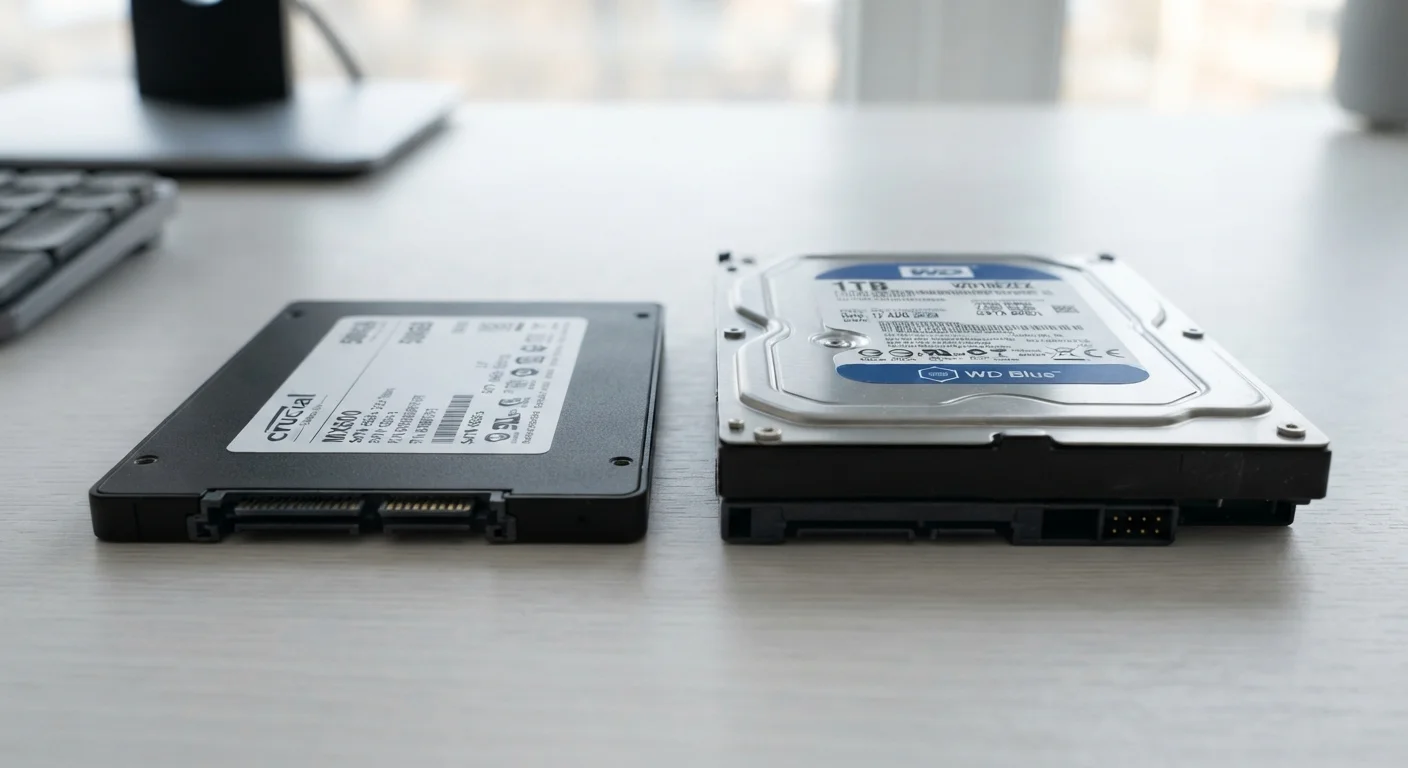
A hard disk drive (HDD) stores data on one or more spinning magnetic platters - think of a tiny vinyl record. A mechanical arm moves across the surface to read and write information. Because the whole process is physical, the drive makes a faint humming or clicking sound, and speed is limited by how fast the platters spin (measured in RPM, or revolutions per minute).
A solid-state drive (SSD) contains no moving parts at all. It stores data on interconnected flash memory chips - the same basic technology used in a USB thumb drive, just much faster and more sophisticated. When you open a file, the drive retrieves it electronically rather than mechanically, which is why the difference in speed is so dramatic.
| Criterion | SSD | HDD |
|---|---|---|
| How data is stored | Flash memory chips | Spinning magnetic platters |
| Read/write speed | Very fast | Slower |
| Moving parts | None | Yes (platters + arm) |
| Durability (drops/vibration) | Higher | Lower |
| Noise level | Silent | Audible hum/click |
| Cost per gigabyte | Higher | Lower |
| Typical use | Primary drive, laptops | Bulk storage, backups |
Speed, Durability, and Noise: The Practical Differences
For most everyday users, speed is the first thing they notice when switching from an HDD to an SSD. A computer with an SSD can boot Windows or macOS in under 15 seconds; the same system with an HDD may take a minute or more. Applications open faster, file transfers complete sooner, and the overall experience feels more responsive.
Durability is another real advantage of SSDs. Because there's nothing spinning inside, a bump or drop that might damage an HDD's read/write head - causing data loss - is far less likely to harm an SSD. This matters most in laptops and portable devices.
Noise and heat are also worth mentioning. HDDs produce audible noise from their spinning platters and can generate more heat under load. SSDs run silently and tend to run cooler, which can contribute to quieter, thinner laptop designs.
5-10×
Speed advantage of SSD over HDD
Sequential read speeds for consumer SSDs commonly range from 500 MB/s to over 3,000 MB/s, compared to roughly 80-160 MB/s for typical HDDs.
~20%
Less power used by SSDs vs. HDDs
Because SSDs have no motor to spin platters, they generally consume less power, which can extend laptop battery life in typical use.
Storage Capacity and Cost
Where HDDs still hold a clear advantage is cost per gigabyte. For the same amount of money, you can generally buy significantly more raw storage space with an HDD than an SSD - though this gap has been narrowing steadily as SSD technology matures.
For users who store large media libraries, game collections, or video archives, an HDD offers a practical way to keep costs manageable. Many desktop computer setups combine both: a smaller SSD as the primary drive (where the operating system and key applications live) and a larger HDD as a secondary drive for bulk storage.
A Note on Lifespan and Data Loss
Both SSDs and HDDs can and do fail over time. SSDs have a finite number of write cycles, while HDDs are vulnerable to mechanical failure and physical shock. Neither type should be treated as permanent storage. Keeping a backup of important files - on an external drive or cloud service - is a sound habit regardless of which drive type your computer uses.
If you're unsure what kind of drive is in your current computer, you can check in Windows by opening Device Manager or Disk Management, or on a Mac by clicking the Apple menu and selecting About This Mac > More Info. The drive type is usually listed there.
Which One Is Right for You?
There's no universal answer - it depends on how you use your computer and what you value most.
- Choose an SSD if speed and responsiveness are priorities, if you use a laptop on the move, or if you want a quieter, more energy-efficient machine.
- Choose an HDD if you need a large amount of storage at lower cost, particularly for a desktop that stays put and stores big files.
- Consider both if your use case involves fast everyday performance and large-scale storage - a dual-drive setup gives you the best of both worlds.
Most new laptops ship with SSDs as standard, while external desktop drives and backup solutions still frequently use HDDs. Knowing the difference means you can ask the right questions and understand exactly what you're getting.