

| USB-A primary use | Data transfer and power for accessories |
| USB-C primary use | Data, charging, and (on supported devices) video output |
| HDMI primary use | High-definition video and audio to displays |
| USB 3.0 max data speed | Up to 5 Gbps (USB Implementers Forum) |
| HDMI 2.1 max resolution | Up to 10K (practical max: 4K at 120Hz for most users) (HDMI Forum specification) |
| Reversible connector | USB-C (not USB-A or HDMI) |
Why Ports Matter More Than You Think
Most people don't think about ports until something doesn't fit - or doesn't work. You plug a cable in, nothing happens, and you're left wondering whether you have the wrong cable, the wrong port, or a broken device. In most cases, the answer is simpler: you just need to know what each connector is actually designed to do.
Ports aren't interchangeable. Each one was built for a specific purpose - and some have evolved to do several things at once. Here's a plain-English breakdown of the three most common connectors you'll encounter on laptops, monitors, phones, and TVs.
| USB-A primary use | Data transfer and power for accessories |
| USB-C primary use | Data, charging, and (on supported devices) video output |
| HDMI primary use | High-definition video and audio to displays |
| USB 3.0 max data speed | Up to 5 Gbps (USB Implementers Forum) |
| HDMI 2.1 max resolution | Up to 10K (practical max: 4K at 120Hz for most users) (HDMI Forum specification) |
| Reversible connector | USB-C (not USB-A or HDMI) |
USB-A: The Original Universal Connector
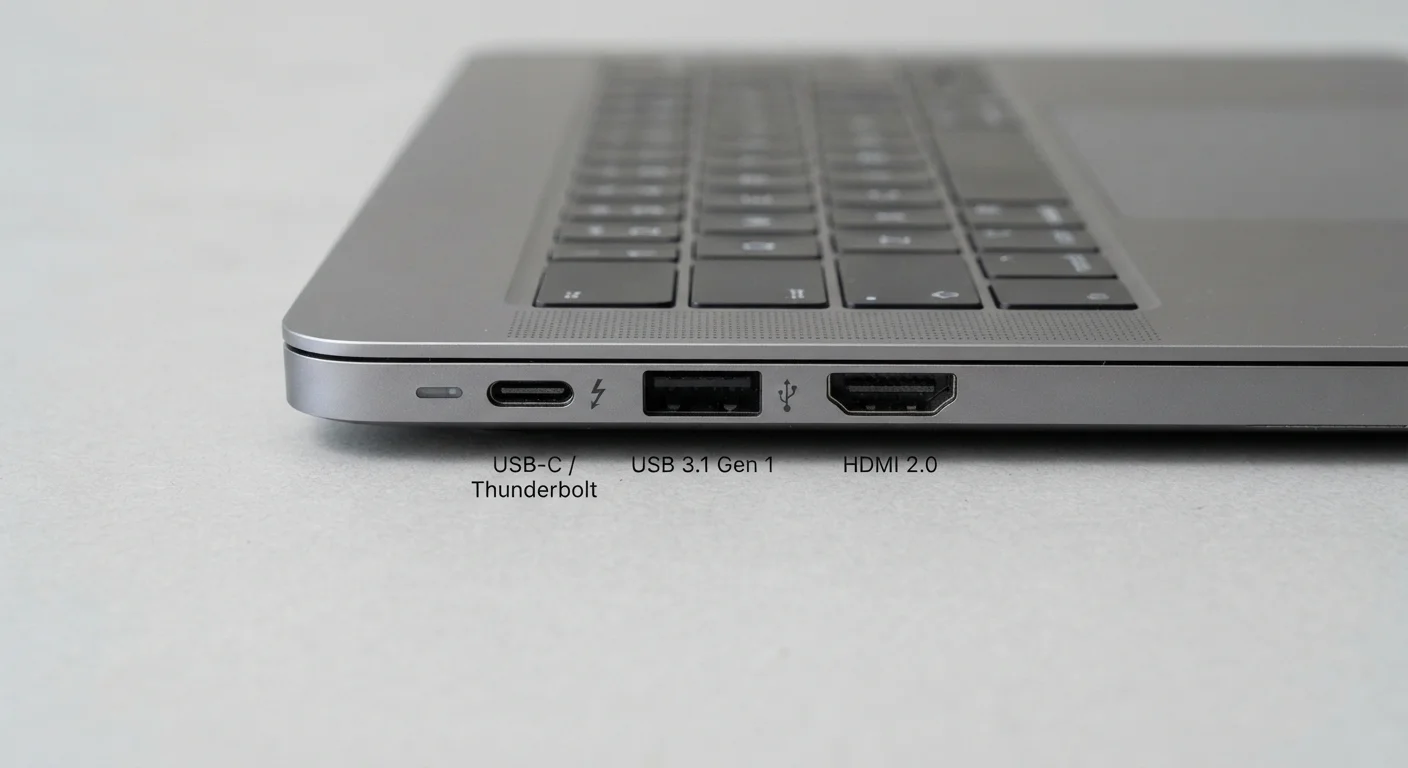
USB-A is the rectangular port you've been using for decades. It's the one on most wall chargers, older laptop sides, and desktop towers. Its defining feature is that it only fits one way - though somehow everyone tries it upside-down first.
What it does: USB-A transfers data and delivers power. It's used to connect mice, keyboards, flash drives, and charging cables for older phones and accessories. Most USB-A ports on computers run on the USB 3.0 standard (look for a blue-colored port interior), which supports data transfer speeds up to around 5 Gbps - fast enough for most everyday file transfers.
Limitations: USB-A doesn't carry video signals on its own, and its charging power output is modest compared to newer standards. It's being phased out on thinner devices but remains extremely common.
USB-C: The Port That Does Almost Everything
USB-C is the small, oval-shaped port increasingly found on laptops, Android phones, iPads, and accessories. Unlike USB-A, it's reversible - it doesn't matter which way you insert it.
What it does: USB-C can carry data, power, and - depending on the device - video. That last capability is what makes it genuinely different. Many laptops now use USB-C as their sole charging port, and with the right cable, you can connect a monitor through it. Some USB-C ports support Thunderbolt, which dramatically increases data speed and allows daisy-chaining multiple devices.
Important caveat: Not all USB-C ports are equal. A USB-C port on a budget phone might only support basic charging and data. The same-shaped port on a laptop might support 4K video output. Check your device's documentation to know what your specific USB-C port supports.
For more on how charging power levels work, see our guide to watts, volts, and amps.
USB-A
The original rectangular USB connector, used for data transfer and power delivery. Common on chargers, flash drives, mice, and keyboards. Does not carry video.
USB-C
A small, oval, reversible connector that can carry data, power, and in many cases video - all through one port. Capabilities vary significantly by device.
HDMI
High-Definition Multimedia Interface. A port designed to carry both high-definition video and audio over a single cable. Standard on TVs, monitors, and many laptops.
Thunderbolt
A high-speed protocol developed by Intel that shares the USB-C connector shape. Offers significantly faster data transfer and supports multiple displays. Not all USB-C ports support it.
USB 3.0
A USB standard supporting data transfer speeds up to 5 Gbps. Often identified by a blue-colored port interior. Faster than the older USB 2.0 standard.
HDMI: Built for Picture and Sound
HDMI (High-Definition Multimedia Interface) is the wide, trapezoidal port on TVs, monitors, projectors, and many laptops. It was designed specifically to carry high-definition video and audio over a single cable - which is why it replaced the tangle of separate audio and video cables on older home theater setups.
What it does: HDMI transmits video up to 4K (and beyond with newer versions) along with multi-channel audio, all in one cable. It does not carry power or data in the way USB does. It's the standard way to connect a laptop to an external monitor or TV, and it's how most streaming devices and game consoles connect to a screen.
HDMI versions: The port looks the same across versions, but capabilities differ. HDMI 2.0 supports 4K at 60Hz; HDMI 2.1 supports 4K at 120Hz and 8K. For most home viewing, the version difference won't matter - but if you're connecting a high-refresh-rate gaming monitor, it's worth checking. See our guide to screen specs for more on refresh rates and resolution.
Wondering whether a wired HDMI connection beats a wireless screen-casting option? Wired vs. wireless trade-offs covers that comparison in detail.
Choosing the Right Cable and Adapter
Once you know what each port does, making the right cable choice gets much easier. A few practical rules:
- Match the task to the port. Video output goes through HDMI or a USB-C port that supports video. Data and charging go through USB.
- Adapters work - with trade-offs. A USB-C to HDMI adapter is a common and reliable solution for connecting a newer laptop to an older monitor. Just verify the adapter explicitly states it supports the resolution you need.
- Cable quality matters for longer runs. For short desktop connections, most cables perform similarly. For HDMI runs over 15 feet, higher-quality cables can reduce signal issues.
- Don't assume - check specs. When in doubt, look up the port specifications for your specific device model. Manufacturer support pages typically list exactly what each port supports.
Mini and Micro Variants Still Exist
You may also encounter Mini-HDMI and Micro-HDMI ports on cameras and smaller tablets, and Micro-USB on older accessories. These carry the same signals as their full-size counterparts but require a different cable or adapter. They are increasingly rare on newer devices but still common enough to encounter in the wild.